Why Updating Your Garmin Heart‑Rate Zones Matters (And How to Do It)
- Nishadil
- October 23, 2026
- 0 Comments
- 4 minutes read
- 11 Views
- Save
- Follow Topic
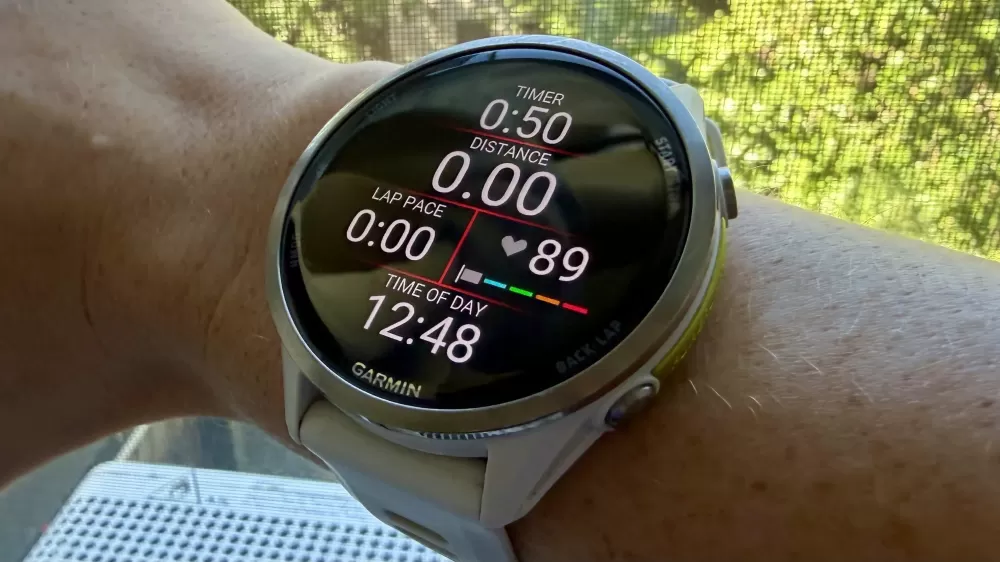
You Should Update Your Garmin Watch’s Heart Rate Zones
If you rely on a Garmin for heart‑rate‑based training, those zone numbers can get stale fast. Here’s why they matter, what can go wrong, and a step‑by‑step guide to keep them accurate.
Zone 2 training still has a cult‑following – the idea that a comfortable, conversation‑friendly pace can bulk up your aerobic engine, shave seconds off race times, and maybe even add years to your life. The hype is real, even if the science is still a bit messy.
But all that talk is useless if your watch is pointing you at the wrong zone. Garmin devices calculate zones automatically when you first set them up, using age, weight and a generic max‑heart‑rate formula (usually “220 minus your age”). That one‑size‑fits‑all number rarely matches your true max, which can differ by dozens of beats per minute.
Because of that, the “Zone 2” you see on the screen might actually be a gentle jog for someone else, or a hard‑up‑hill effort for you. The problem compounds when you realize there isn’t a single, universally accepted zone system. Garmin lets you choose between three methods, each with its own quirks:
- Percent of max heart rate – simplest, but only as good as that guessed max.
- Percent of heart‑rate reserve (HRR) – takes your resting heart rate into account, so it adapts a bit more to your current fitness.
- Percent of lactate threshold heart rate (LTHR) – anchors zones to the intensity where lactate starts to build up, which most coaches swear by.
That third option begs the question: how do you actually get a lactate‑threshold number? In the past, Garmin required a chest‑strap test – a hard, structured run while the strap recorded data. Newer models have tossed that ritual out, letting the wrist‑based optical sensor estimate LTHR automatically after a few regular outdoor runs. It’s usually enabled by default, but you can turn it off and type in a custom number if you prefer the old‑school approach.
Even if you nail the right method once, zones drift over time. Here’s why you should revisit them every few months:
- Fitness gains – As you get fitter, your resting heart rate drops and your threshold climbs, shifting every zone.
- Aging – Max heart rate tends to creep down a bit each year.
- Sport‑specific demands – Running, cycling and swimming each stress the cardiovascular system differently, and Garmin lets you set sport‑specific zones. If you never tweak those, you might be using a running‑based “Zone 2” while on the bike.
- Device swaps – Switching watches or importing old profiles can carry over outdated numbers.
None of these changes will break your watch, but they can make heart‑rate training feel off‑kilter. If you think you’re cruising in Zone 2 while actually burning a lot more effort, you could be overtraining or simply not getting the aerobic boost you’re after.
So, how do you reset those zones? The process is pretty painless:
- Open the Garmin Connect app and tap “Devices”.
- Select your watch, then choose “User Settings” → “Heart Rate Zones”.
- Pick the method you prefer – percent of max, HRR, or LTHR.
- If you go with HRR or LTHR, make sure your resting heart rate is up‑to‑date (you can let the watch measure it overnight).
- Enter your current max or threshold numbers, or let the app estimate them based on recent activities.
- Save, sync, and you’re good to go.
After you’ve saved the new zones, give them a test run. Pay attention to how your perceived effort matches the zone numbers – a little mismatch is normal, but you should feel roughly where you expect to be.
Bottom line: heart‑rate zones are only as useful as the data feeding them. A quick check‑in every few months (or whenever you notice a shift in how hard a “easy” run feels) can keep your Garmin honest, and your training on point.
Editorial note: Nishadil may use AI assistance for news drafting and formatting. Readers can report issues from this page, and material corrections are reviewed under our editorial standards.