Android 17’s New App Bubbles: How to Keep Your Favorite Apps Floating on‑Screen
- Nishadil
- October 24, 2026
- 0 Comments
- 4 minutes read
- 6 Views
- Save
- Follow Topic
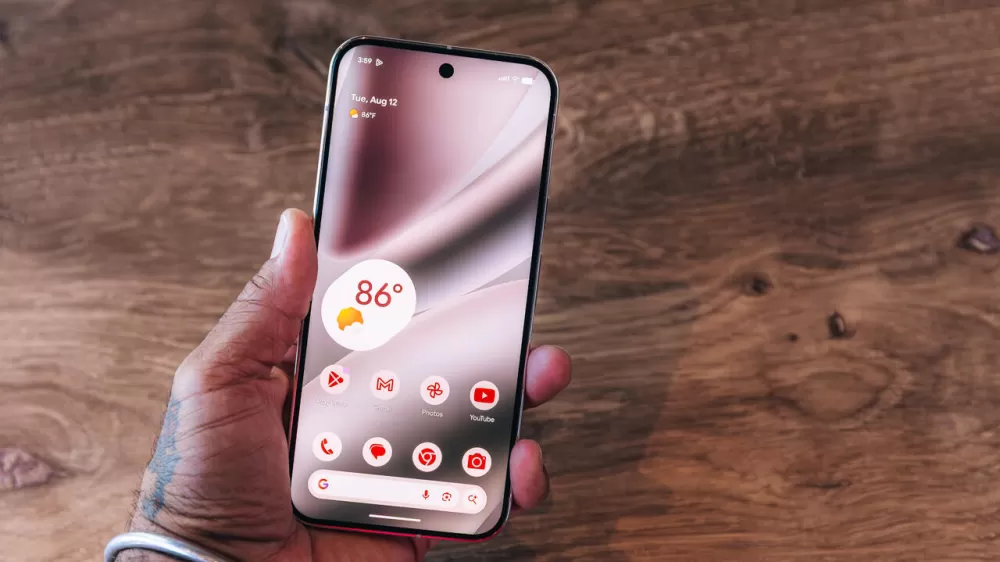
Android 17 adds app bubbles – a quick guide to floating your most‑used apps
Android 17 lets you turn up to five apps into floating bubbles that stay on top of everything, making multitasking a breeze on Pixel and, soon, other phones.
Remember when Android first let you pop a chat into a little floating bubble? It felt like a novelty, but it was also oddly satisfying. Well, Android 17 has taken that idea a step further. Now you can bubble an entire app – not just a conversation – so its icon hovers above your screen, ready to be tapped at a moment’s notice.
The feature is rolling out on Google Pixel devices first, but the rumor mill says other manufacturers will get it later. If you’ve ever wished you could keep the calculator, music player, or your favorite news app just a tap away while you’re scrolling through emails, you’ll appreciate this.
What the bubbles actually do
When you “bubble” an app, Android shrinks its launcher icon into a small circle that sticks to either side of the display. The bubble stays on top of every other window, so you never have to dig through the home screen or app drawer again. You can have up to five bubbles at once – enough for a music app, a quick‑notes widget, a navigation shortcut, and a couple of other go‑tos.
It’s a modest time‑saver – maybe a tap or two each time you need the app – but the real win is the mental space it frees up. No more hunting for that little “always‑on‑top” shortcut. The bubbles are there, visible, and you can drag them up or down the edge as you like.
How to bubble an app on a Google Pixel
1️⃣ Find the app you want. Open your home screen or app drawer and locate the app you’d like to keep floating.
2️⃣ Long‑press the icon. Press and hold the app’s icon until a small menu pops up.
3️⃣ Select “Bubble.” In the menu you’ll see options like “App info,” “Add to home screen,” and “Bubble.” Tap the bubble option.
4️⃣ Place the bubble. The app collapses into a circular icon that you can slide along the left or right edge of the screen. It can’t float in the middle, but that’s fine – the sides are perfect for quick access.
5️⃣ Enjoy the convenience. Tap the bubble any time to launch the app, or swipe it away to dismiss. You can bubble multiple apps; they’ll line up together and move as a group.
How to get a similar experience on Samsung Galaxy phones
Samsung already has a feature called Smart Pop‑Up View that does something akin to bubbles, letting selected apps pop up over whatever you’re doing.
1️⃣ Open Settings and go to Notifications.
2️⃣ Tap Advanced settings, then find Floating notifications and choose Smart Pop‑Up View.
3️⃣ Enable Multi‑window for all apps if it isn’t already turned on – this gives the pop‑up view the freedom to appear on top of other apps.
4️⃣ Pick the apps you want to prioritize. Once selected, those apps will appear as floating windows whenever you receive a notification from them.
While Samsung’s implementation isn’t exactly the same as Android’s bubbles, it offers a comparable multitasking boost.
Why you might love app bubbles
Think of the everyday moments when you’re juggling a recipe, a podcast, and a quick reply to a message. Instead of swiping back and forth between apps, a bubble lets you keep the podcast controller or a note‑taking app right where you can see it. It’s a small visual cue that your most‑used tools are at hand.
In the grand scheme of Android’s UI arsenal, bubbles are a modest addition, but they feel surprisingly natural once you get used to them. Give it a try – pick your favorite five apps and see how much smoother your day feels.
Editorial note: Nishadil may use AI assistance for news drafting and formatting. Readers can report issues from this page, and material corrections are reviewed under our editorial standards.