Unlock Real-Time Network Speed on Your Samsung Galaxy: A Step-by-Step Guide
- Nishadil
- June 13, 2026
- 0 Comments
- 4 minutes read
- 47 Views
- Save
- Follow Topic

Know Your Internet Speed Instantly: How to Get the Network Indicator on Your Samsung Phone
Tired of guessing your internet speed? Learn how to enable the real-time network speed indicator on your Samsung Galaxy smartphone using Good Lock's QuickStar module. It's easier than you think!
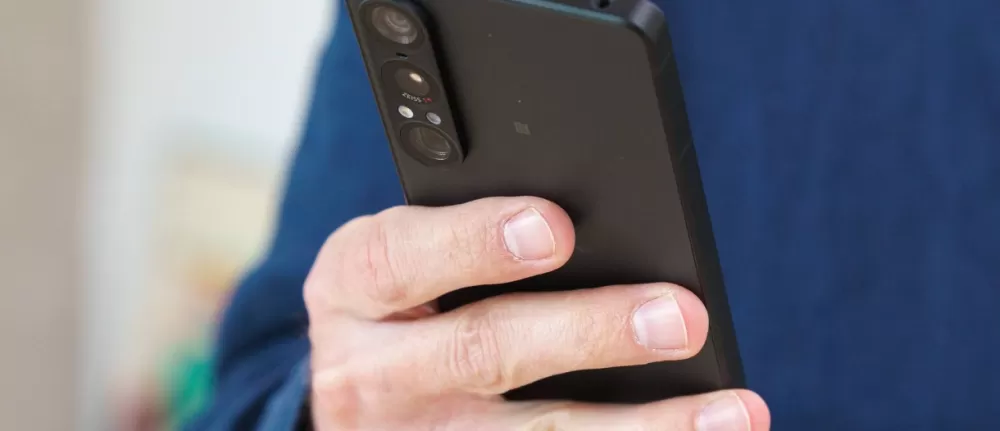
Ever found yourself staring at your Samsung Galaxy phone, wondering if your internet connection is truly zipping along or just taking its sweet time? Maybe you're downloading a big file, streaming a movie, or just browsing, and there's that nagging curiosity: "How fast is this thing really going right now?" Well, imagine having a little digital speedometer for your network, right there in your status bar, constantly updating to show you exactly how much data is flowing. Sounds incredibly useful, doesn't it?
The good news is, for us Samsung Galaxy users, this isn't just a dream – it's a completely achievable reality! While many Android phones don't offer a built-in, always-on network speed monitor by default, Samsung, in its wisdom, provides a fantastic way to enable this incredibly handy feature. It’s not immediately obvious, hiding a little behind one of Samsung’s most powerful customization suites: Good Lock. Trust me, once you experience having that real-time feedback, you’ll wonder how you ever managed without it.
So, let's dive right in and get this set up on your device. It’s a straightforward process, requiring just a couple of quick downloads and a few taps. Don't worry, even if you're not super tech-savvy, you'll have this indicator up and running in no time. Think of it as giving your phone a little upgrade, unlocking a piece of information that truly enhances your digital life.
Step 1: Get Good Lock from the Galaxy Store. First things first, you'll need Samsung's official customization toolkit, Good Lock. If you don't already have it installed, head over to the Galaxy Store on your phone – it's that blue shopping bag icon. Search for "Good Lock" and hit download. It’s a fairly small app, so it won’t take long at all. This app is basically your gateway to a whole world of unique Samsung tweaks, and our network speed indicator lives within one of its modules.
Step 2: Install the QuickStar Module. Once Good Lock is installed and you’ve opened it up, you'll see a list of various modules, each offering different customization options. For our purpose, we're looking for the one called "QuickStar." Tap on QuickStar, and if it’s not already installed, Good Lock will prompt you to download it directly from the Galaxy Store. Go ahead and do that. QuickStar is a brilliant module that lets you tweak various elements of your Quick Panel and status bar, including, you guessed it, the network speed display.
Step 3: Open QuickStar and Enable the Network Information. With QuickStar now downloaded and ready, go back into the Good Lock app and open QuickStar from its list of modules. Inside QuickStar, you'll find a few toggles and options. Look for the setting that says something like "Show network information" or "Network Speed Indicator." It might be worded slightly differently depending on your One UI version, but it should be pretty clearly identifiable. Just tap that toggle to switch it on!
Step 4: Customize Your Display. Now for the neat part – you usually get to choose how this information is displayed. Many versions of QuickStar allow you to select whether you want to see both upload and download speeds, just download speed, or maybe even just the highest speed achieved. Play around with these options until you find the perfect display that suits your preference. You’ll instantly see the indicator appear in your status bar, likely next to your Wi-Fi or cellular signal strength icon, constantly updating with real-time data flow.
And there you have it! In just a few easy steps, you've transformed your Samsung Galaxy phone into a more informative, powerful device. No more guessing, no more wondering. Now, every time you’re using your internet connection, whether it’s mobile data or Wi-Fi, you’ll have immediate, visible feedback on its performance. It’s a small tweak, really, but one that makes a surprisingly big difference in how you interact with your phone and its connection to the digital world. Enjoy knowing your speed at a glance!
Editorial note: Nishadil may use AI assistance for news drafting and formatting. Readers can report issues from this page, and material corrections are reviewed under our editorial standards.