How to Stop Audio from Autoplaying on Android Auto
- Nishadil
- October 20, 2026
- 0 Comments
- 3 minutes read
- 6 Views
- Save
- Follow Topic
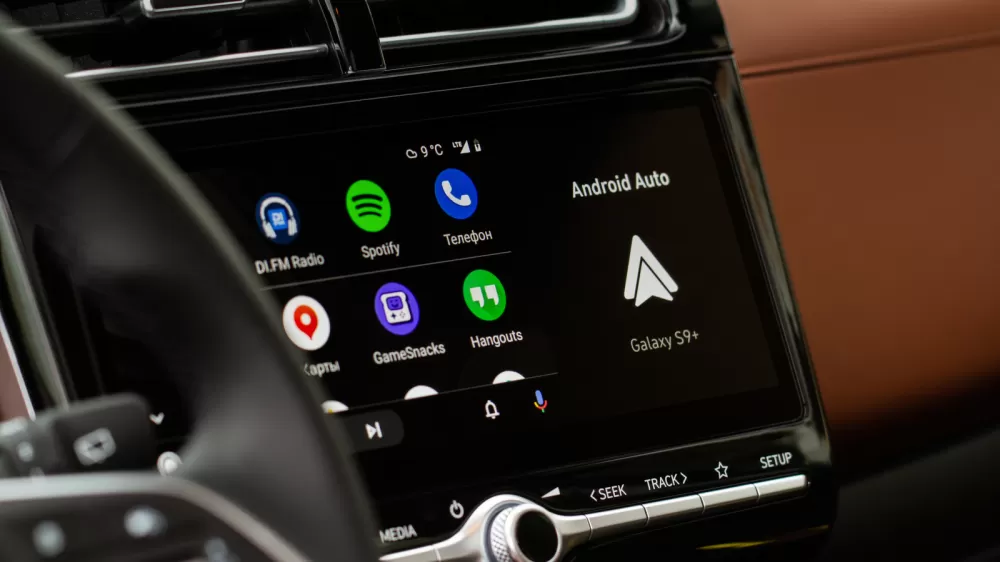
A simple guide to silencing unwanted music, podcasts, and audiobooks when you plug into Android Auto
Learn how to disable the annoying autoplay feature in Android Auto with just a few taps, plus extra tricks for stubborn Bluetooth‑triggered playback.
If you’ve ever rolled out of the driveway only to be greeted by a burst of music you never asked for, you know how jarring Android Auto’s autoplay can be. The moment your phone links up—whether via USB or wirelessly—your last playlist, podcast, or audiobook jumps back to life at the volume you left it at. It’s not just a minor irritation; it can be a safety hazard, especially on a sleepy morning commute.
Good news: fixing it is no longer a multi‑step hack that requires third‑party apps. In most cases a single toggle in Android Auto’s settings does the trick.
Step‑by‑step:
- Open your phone’s Settings app.
- Tap Connected devices → Android Auto.
- Scroll down to the Startup section.
- Turn off the switch labeled Start music automatically.
If you can’t locate the toggle, just type “Android Auto” into the Settings search bar. Disabling this option tells Android Auto to stay quiet until you deliberately hit play.
For many drivers, that’s the end of the story. But sometimes the problem lives deeper—in the Bluetooth layer that Android Auto uses for calls and the initial handshake.
Bluetooth‑level workaround:
- Forget the car’s Bluetooth profile on your phone (Settings → Bluetooth → tap the car’s name → Forget).
- Reconnect using USB only, if your vehicle supports it.
This forces Android Auto to rely on the wired connection, which can stop rogue “play” commands from sneaking through. Results vary, though; some cars still send a playback signal even over USB.
What about Spotify? Even with the Android Auto toggle off, Spotify users often report that the app still starts playing automatically. The culprit is usually the way Bluetooth devices interact with Spotify’s API—any paired headset, speaker, or car stereo can issue a “play” command when it reconnects.
Before you jump to reinstalling the app or removing it from Android Auto, try these quick checks:
- Test playback with a different Bluetooth accessory (e.g., headphones).
- Make sure both the Spotify app and your phone’s OS are up to date.
- Restart your phone and the car’s infotainment system.
If the issue persists only in the car, you might consider unpairing the car from Bluetooth entirely and using a USB‑only connection, or— as a last resort—removing Spotify from Android Auto’s app list.
Bottom line: start with the Android Auto “Start music automatically” toggle. If that doesn’t silence the surprise, try the Bluetooth unpairing trick. It may take a couple of attempts, but you’ll eventually enjoy a quiet ride until you decide to press play yourself.
Editorial note: Nishadil may use AI assistance for news drafting and formatting. Readers can report issues from this page, and material corrections are reviewed under our editorial standards.