Decoding Netgear Router LEDs: What Each Light Tells You
- Nishadil
- October 19, 2026
- 0 Comments
- 5 minutes read
- 10 Views
- Save
- Follow Topic
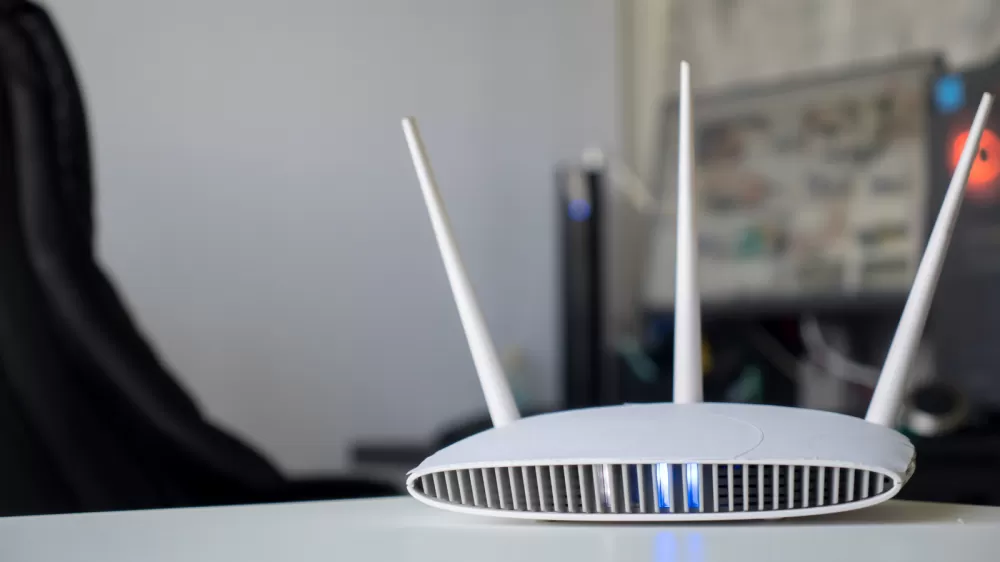
A plain‑English guide to the meaning of every light on your Netgear router (and Orbi mesh)
Learn what the green, amber and blinking LEDs on Netgear routers and Orbi mesh units really mean, plus which ones you should actually worry about.
If you’ve ever stared at the little glowing dots on the front of a Netgear router and wondered whether they’re shouting “all good!” or silently screaming “something’s wrong,” you’re not alone. The LED panel can feel like a secret code, especially when the colors change or the lights start blinking for the first time.
Fortunately, the symbols aren’t as cryptic as they appear. Below is a down‑to‑earth rundown of every indicator you’ll see on a typical Netgear box, plus a quick cheat‑sheet for the newer Orbi mesh devices. Think of it as a quick‑reference cheat sheet you can keep on the back of the fridge – short, useful, and a little bit conversational.
The lights you really need to watch
Power LED – This one looks like the classic power symbol. When it’s solid green or white, the router is alive and kicking. A solid amber means the unit is still booting up. If it starts blinking amber, the firmware is either updating or you’ve hit the reset button. Blinking white? That’s a firmware‑corruption warning – not great. A mix of white and amber tells you the router is acting as an access point, which disables some advanced features like VPN and remote management.
Internet LED – The little globe‑with‑orbit icon is all about your WAN connection. No light means the router can’t see the modem – double‑check that Ethernet cable. Solid green/white says you’re online. Solid amber indicates the router has detected the Ethernet link but hasn’t yet secured an IP address. A blinking white light is normal traffic flowing in or out.
Wi‑Fi LED – Look for the tiny radio‑wave symbol. Off means the Wi‑Fi radios are disabled (maybe you turned them off on purpose). Solid white means the radios are powered and ready. If it’s blinking white, your network is actively transmitting data – nothing to worry about.
Other handy indicators
Band LEDs (2.4 GHz, 5 GHz, 6 GHz) – Modern Netgear models give you a separate light for each band. The meanings line up across the board: off = band disabled, solid white = band active, blinking white = traffic on that band. If you own a Wi‑Fi 6E unit you’ll also see a 6 GHz light with the same logic.
USB LEDs – If your router sports a USB port, you’ll notice a tiny USB‑shaped light. No light means nothing’s plugged in or you’ve safely ejected a device. A blinking LED signals a device is trying to negotiate a connection. Solid green or white means the USB peripheral (printer, storage drive, etc.) is ready for use.
Ethernet port LEDs – These are usually numbered to match the RJ‑45 sockets. The colour tells you the link speed: white or green for gigabit (1 Gbps), amber for the slower 100 Mbps/10 Mbps modes. Solid means a device is connected; blinking means data is moving across that cable.
WPS LED – The icon looks like a router with radiating waves. Off means no WPS session is happening. A blinking light shows a WPS handshake in progress, while a solid light confirms the device successfully joined the network. Pro tip: turn WPS off when you’re not using it – it’s a common weak‑point for attackers.
Reading the Orbi mesh lights
Netgear’s Orbi systems strip the LED panel down to just a few essential cues, but the meaning flips a bit compared to a traditional router.
Front LED (connection status) – Solid blue means the backhaul link between the router and its satellite is strong. Solid amber tells you the link works, but isn’t optimal – maybe the satellite is a bit far away. Solid magenta signals a broken backhaul or no internet at all. No light means the unit isn’t getting power.
Back LED (power & firmware) – Solid green indicates both the router and satellite are powered up. Solid amber shows a reboot in progress. A pulsing amber means the firmware is updating or the unit is resetting to factory defaults. Pulsing red warns of a hardware fault or a severe connectivity issue. Again, no light equals no power.
In practice, the only lights you’ll need to keep an eye on day‑to‑day are the Power, Internet and Wi‑Fi LEDs. The rest are mostly for troubleshooting when something goes sideways. If you ever see a flashing amber or a solid magenta on an Orbi, give the cables a quick check, power‑cycle the unit, and if that doesn’t help, dive into the web UI for a deeper look.
Bottom line: those tiny LEDs are not just decorative. They’re a compact status board that, once you learn the language, can save you a lot of frustration. The next time a light starts blinking, you’ll know exactly what story it’s trying to tell.
Editorial note: Nishadil may use AI assistance for news drafting and formatting. Readers can report issues from this page, and material corrections are reviewed under our editorial standards.